Connecting to Databases
The GeneTegra Database Connection provides the necessary functionality to configure access to remote and local data from Oracle, Microsoft SQL Server, PostgreSQL, MySQL, and Hypersql databases. Additional database providers may be provided in future releases.
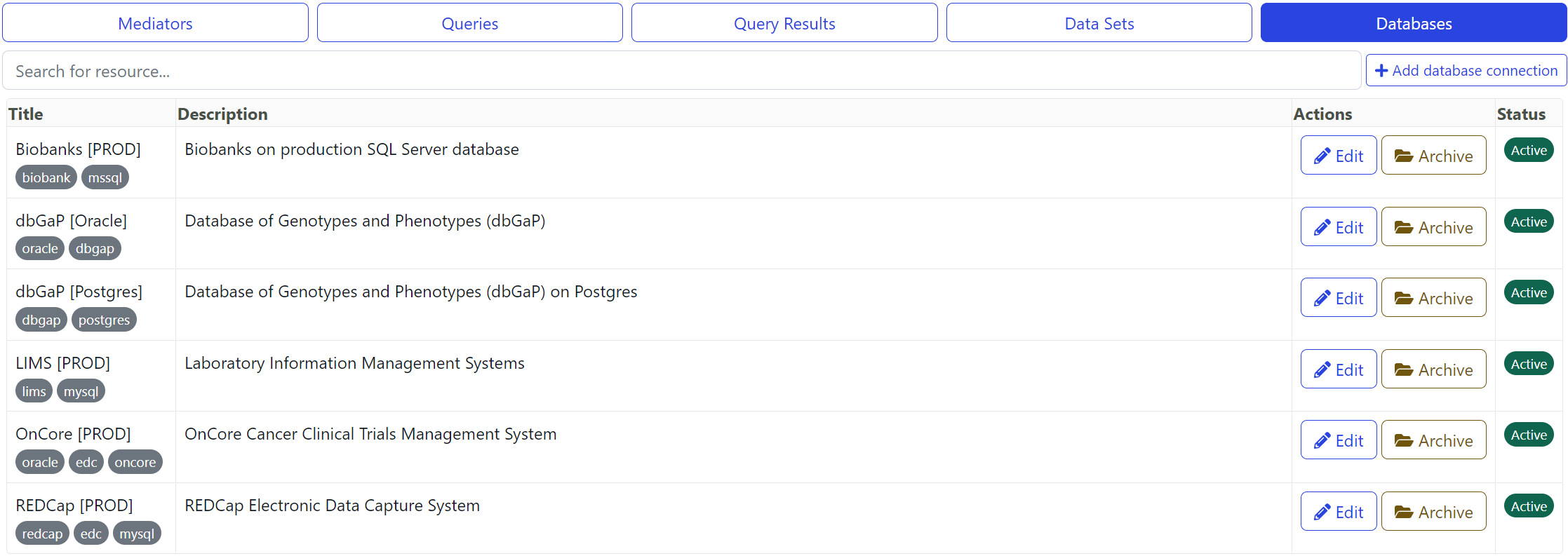
To create a new Database Connection, switch to the Administrator Resources view and click Add database connection.
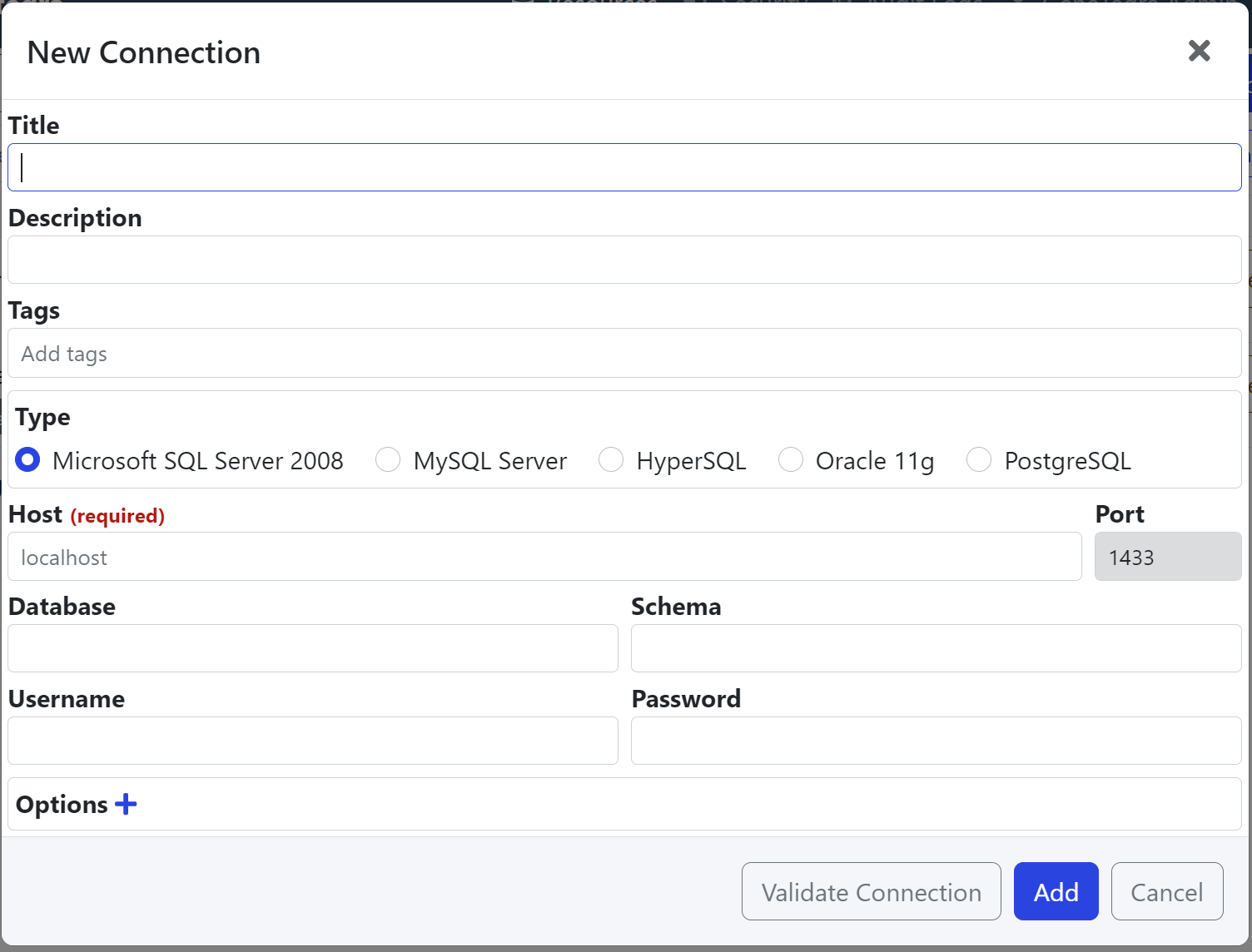
A New Connection dialog will guide you through the required steps to configure SQL access to databases.
| Setting | Description | Required |
|---|---|---|
| Title | Title of the database connection. | ✔️ |
| Description | Description of the database connection. | |
| Tags | Set of keywords to describe the connection. | |
| Type | Database type. | ✔️ |
| Host | Connection hostname or IP address. | ✔️ |
| Port | Connection port. Defaults to Type default port. | ✔️ |
| Database | Database name. Leave blank for all databases. | |
| Schema | Schema name. Leave blank for all schemas. | |
| Username | Connection username, can be overridden by Mediator username. | |
| Password | Connection password, can be overridden by Mediator password. | |
| Options | Additional options to provide to the database driver. |
Validating Database Connections
Once your database connection settings are entered, you can click on the Validate Connection button to confirm that the GeneTegra
server can connect to the database with the provided settings.
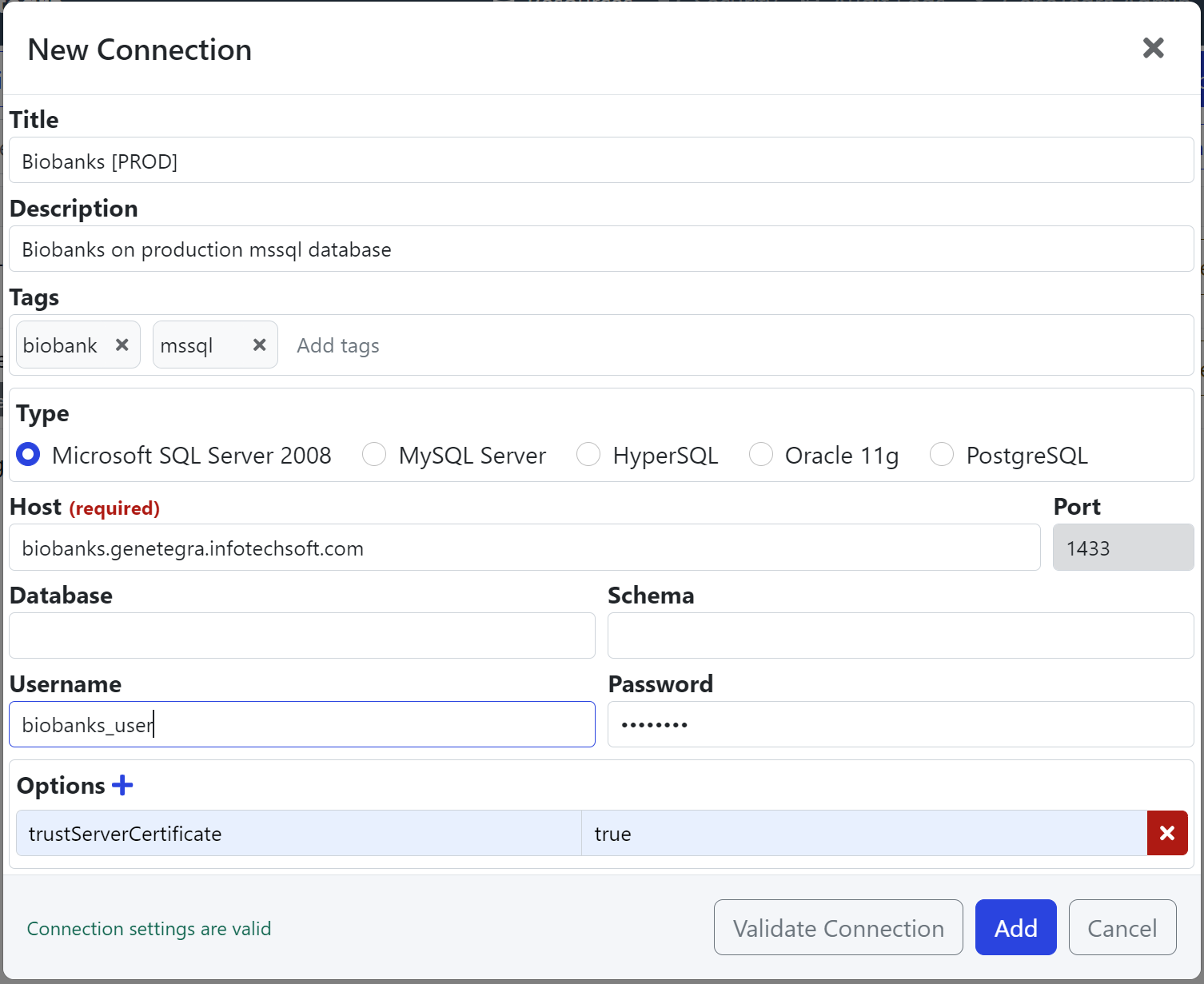
Valid Database Connection
If the database connection settings are valid, Connection settings are valid is displayed in the lower-left of the dialog.
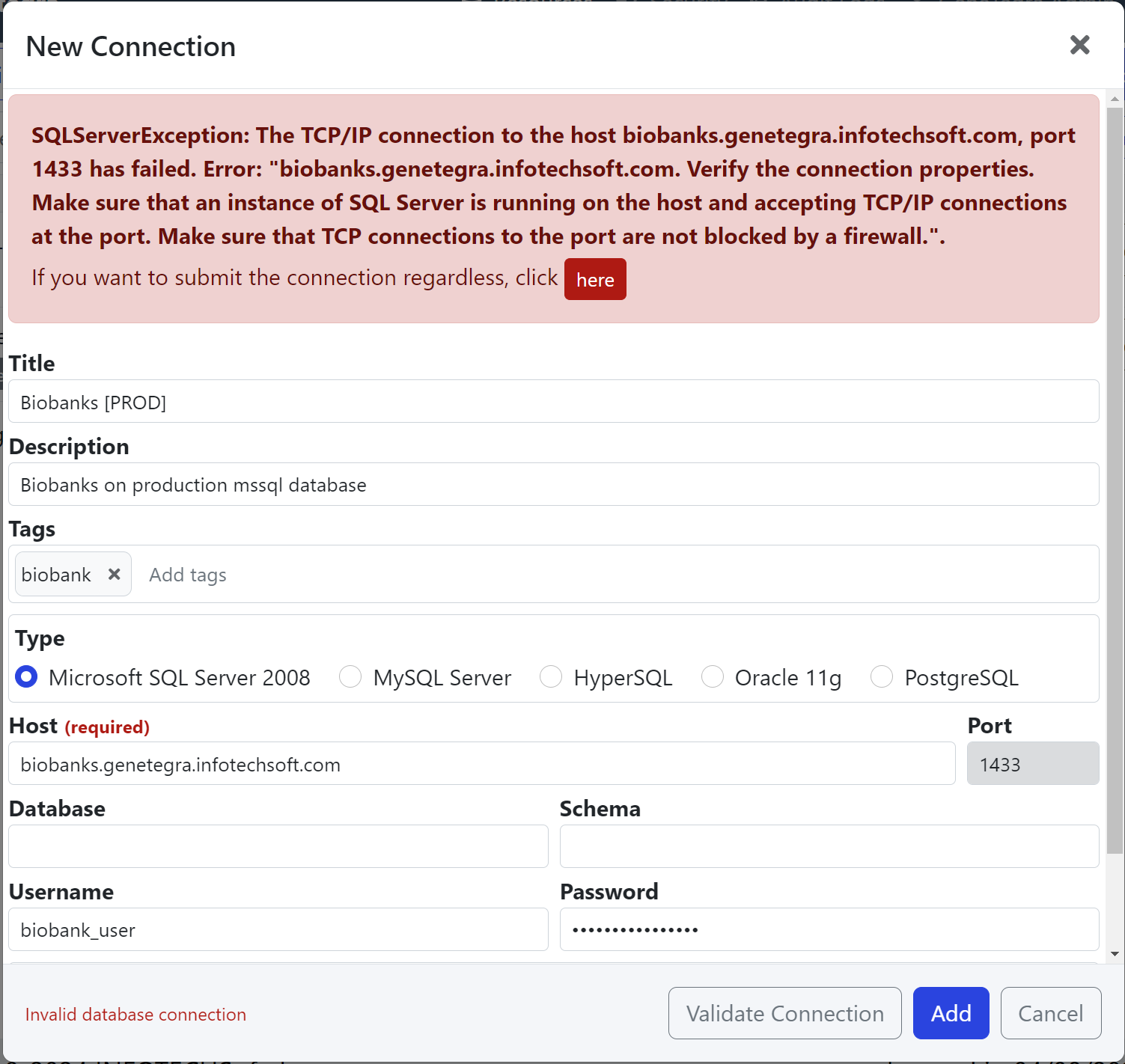
Invalid Database Connection
If the database connection settings are not valid, Invalid database connection is displayed in the lower-left,
and an error message will be displayed at the top of the dialog.
You can choose to save the invalid database connection settings by clicking the here button.