Integrated Mediator
| Type | Description |
|---|---|
 | Integrates two or more Mediators of any type into a Mediator that can access data from any underlying Mediator. |
Select the Integrated icon to start creating a new Integrated Mediator.
Customize the Mediator
You can configure the Mediator metadata and customize the mediator's underlying model.
| Field | Description |
|---|---|
| Title | Title of the Mediator |
| Description | (Optional) Description to help users find and understand the Mediator. |
| Tags | (Optional) List of tags that can be used to help users find and understand the Mediator. |
| Ontology URI | (Optional) Unique URI identifier for the Mediator and configures the URI prefix that is used to define the Mediator's properties. Automatically generated if not specified. |
| Ontology Version | (Optional) Version string or URI for the Mediator's Ontology that is used to track changes (versions) of the Mediator's model. Typically appended to Ontology URI. Automatically generated if not specified. |
Each Mediator is assigned a unique identifier. It is possible to create multiple Mediators with the same Title, Description, or Tags.
You cannot reuse the same Ontology URI for multiple Mediators. In this case, creating the Mediator will fail.
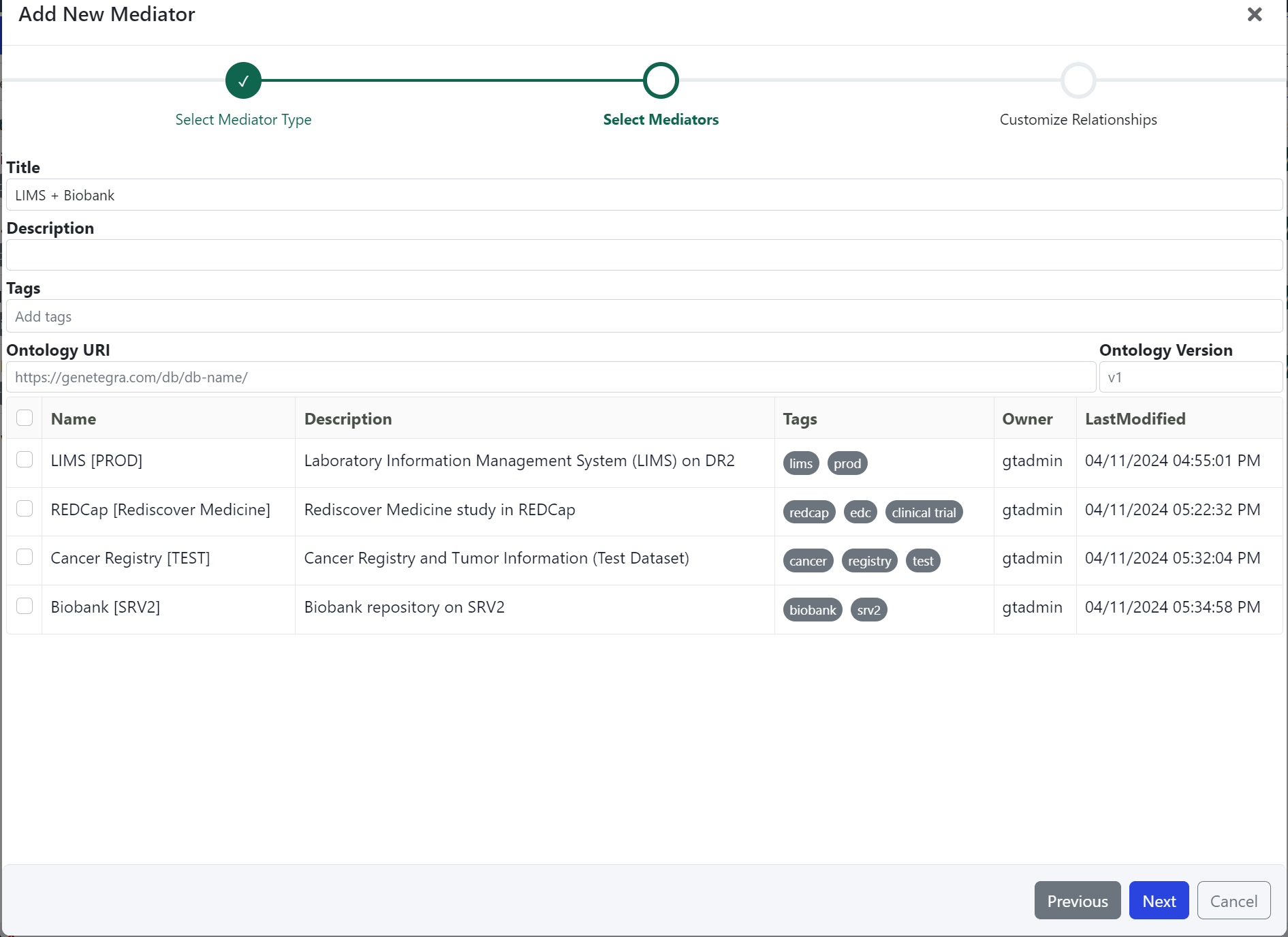 The Integrated Wizard shows a list of the Mediators managed by the GeneTegra system.
Select Mediators
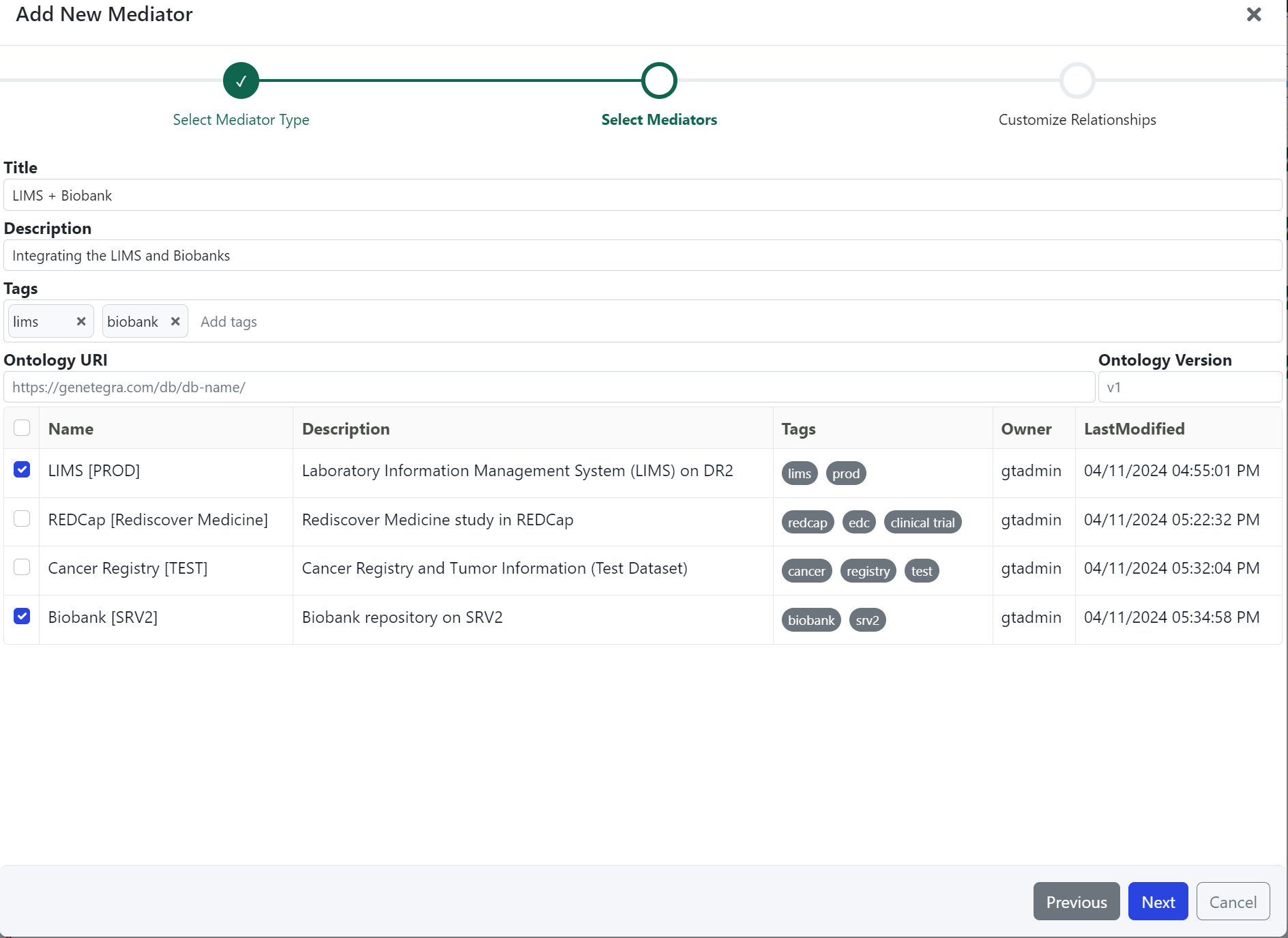
The Integrated Mediator Wizard shows a list of all Mediators. You must select two or more Mediators, or the Wizard will not proceed. Select the ✅ next to each Mediator you want to include.
 EDC Mediator Wizard. Select a REDCap or OnCore schema to proceed to customizing the Mediator.
Customize Relationships
You can add new relationships betwen any of the classes across any of the Mediators. Adding a Custom Relationship is like adding a virtual foreign key constraint on the database.
Adding Custom Relationships help users quickly navigate the connections between multiple Mediators.
| Field | Description |
|---|---|
| Name | Name of the virtual/custom Relationship. |
| Source | Source class of the Relationship. |
| Target | Target class of the Relationship. |
| Constraint | Defines an expression that must be true to |
Selecting a Source and Target
The Source and Target selections present a list of the mediators that have been selected to integrate. You can create custom relationships between different mediators or within the same mediator. Select a mediator for the Source and Target to view the classes (tables) that are available.
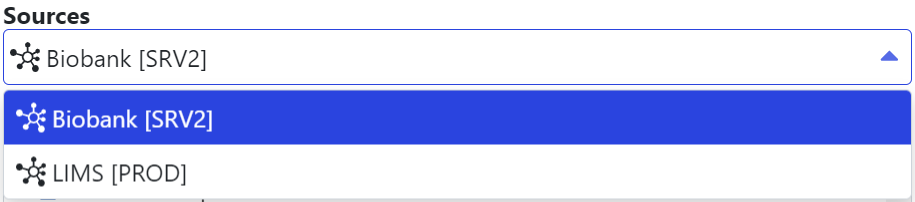 Integrated Mediator: Sources drop-down displays mediators selected to integrate.
Once you've selected a Source and Target mediator, you need to select which classes that should be linked together.
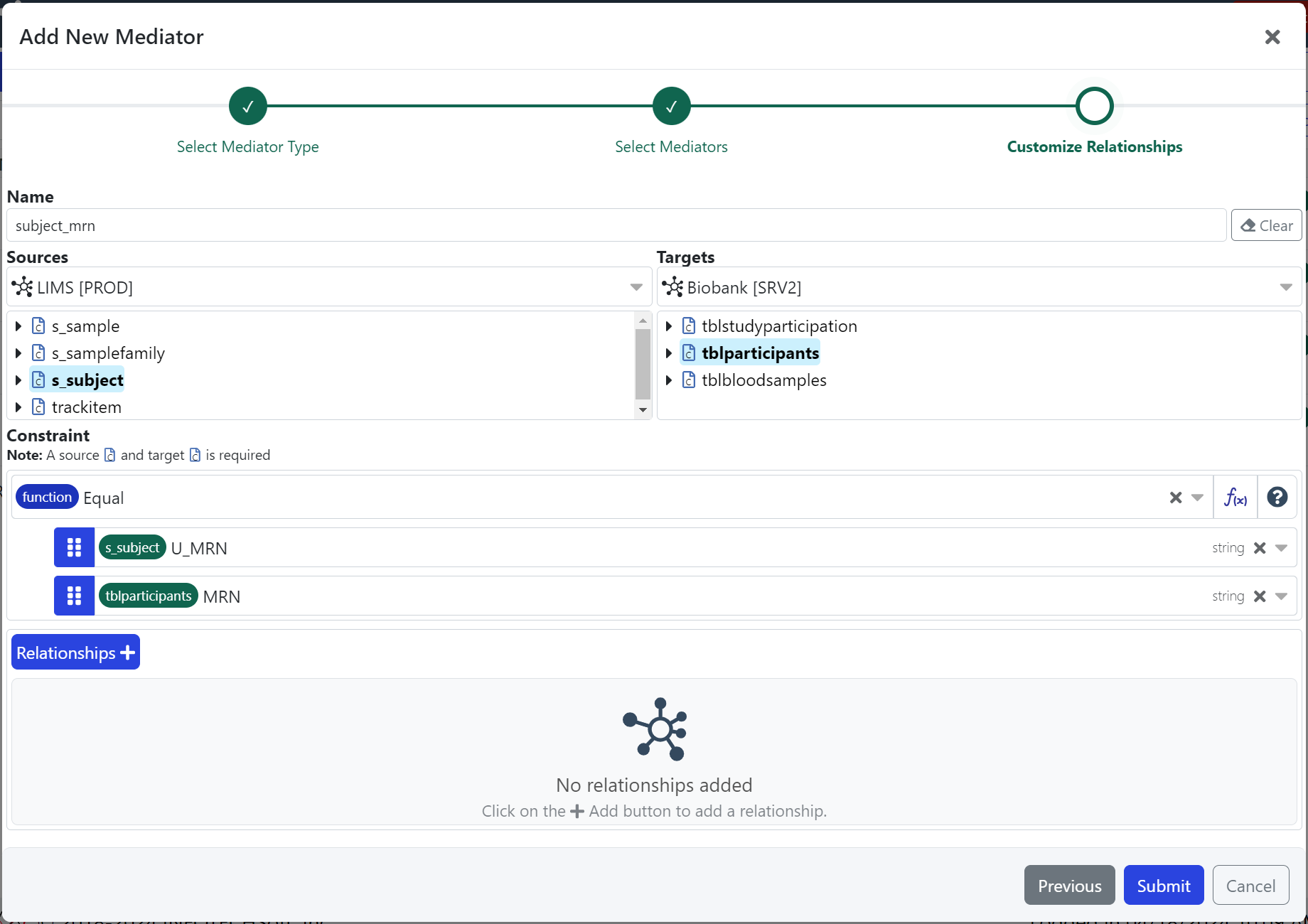 Integrated Mediator: Select classes from the Source and Target list to begin creating a relationship.
 LIMS s_subject and Biobank tblparticipants are selected to be linked.
Defining a Constraint
The Constraint defines how the classes between the Source and Target should be linked together. The constraint must evaluate to a Boolean (true | false) for the rows in the data to be linked together.
A data property from both the Source and Target mediators must be included to define a valid constraint.
Once you've specified your relationship, click the Relationships + button.
You can read more about Query Relationships and Functions in the Query Builder.
Adding More Relationships
You can add as many custom relationships between any of the classes within
the Source and Target mediators. As you add relationships, they will be displayed at the bottom of the screen. You can go back and Edit or Remove a relationship.
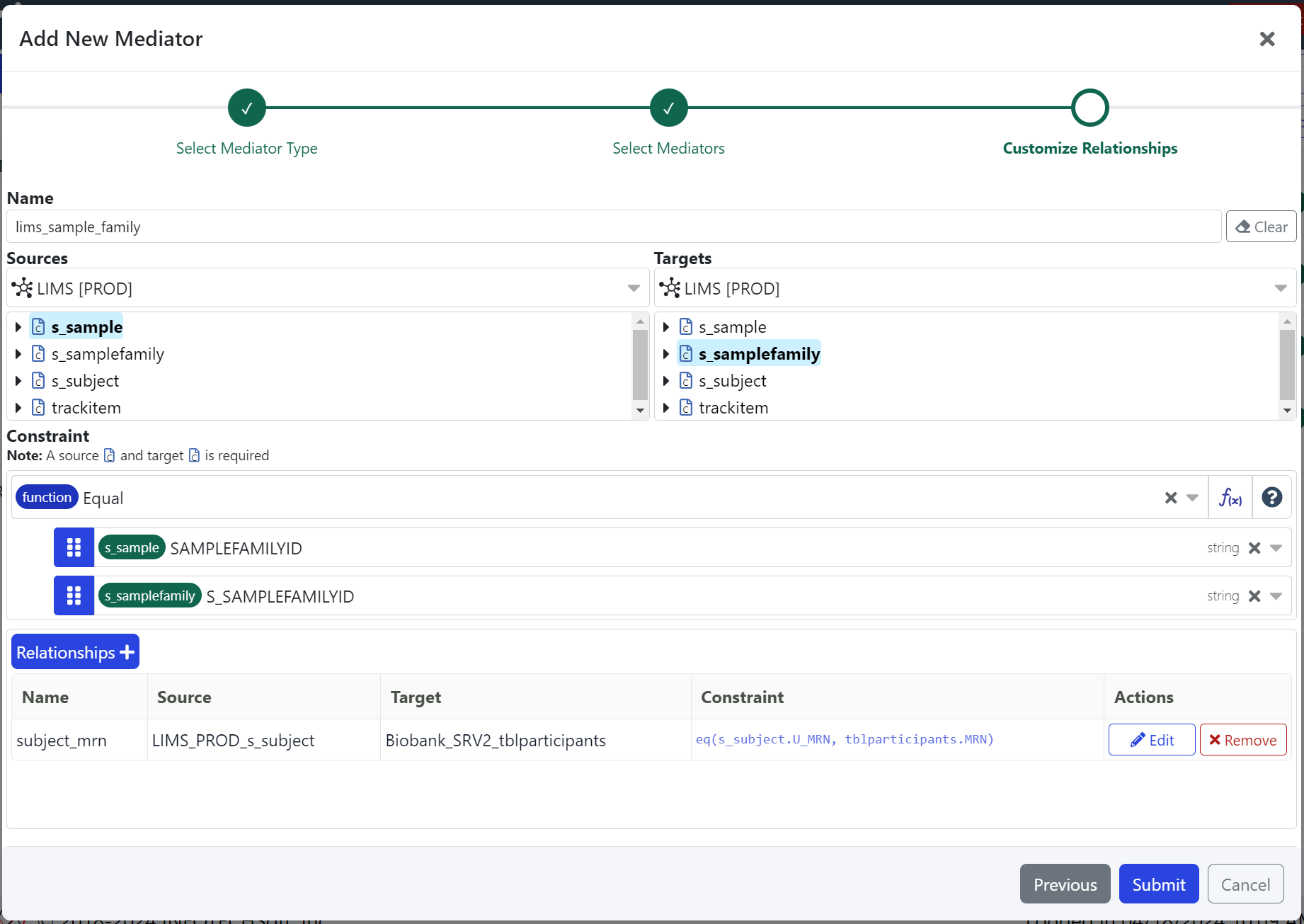 Customize Relationships displays all custom relationships that will be created to link the classes within the integrated mediator together.
Submit the Mediator and Begin Querying
When your Mediator is ready to be created, click Submit.
GeneTegra will build and deploy the Mediator.
Once the Mediator has been created, you will be redirected to the Query Builder.
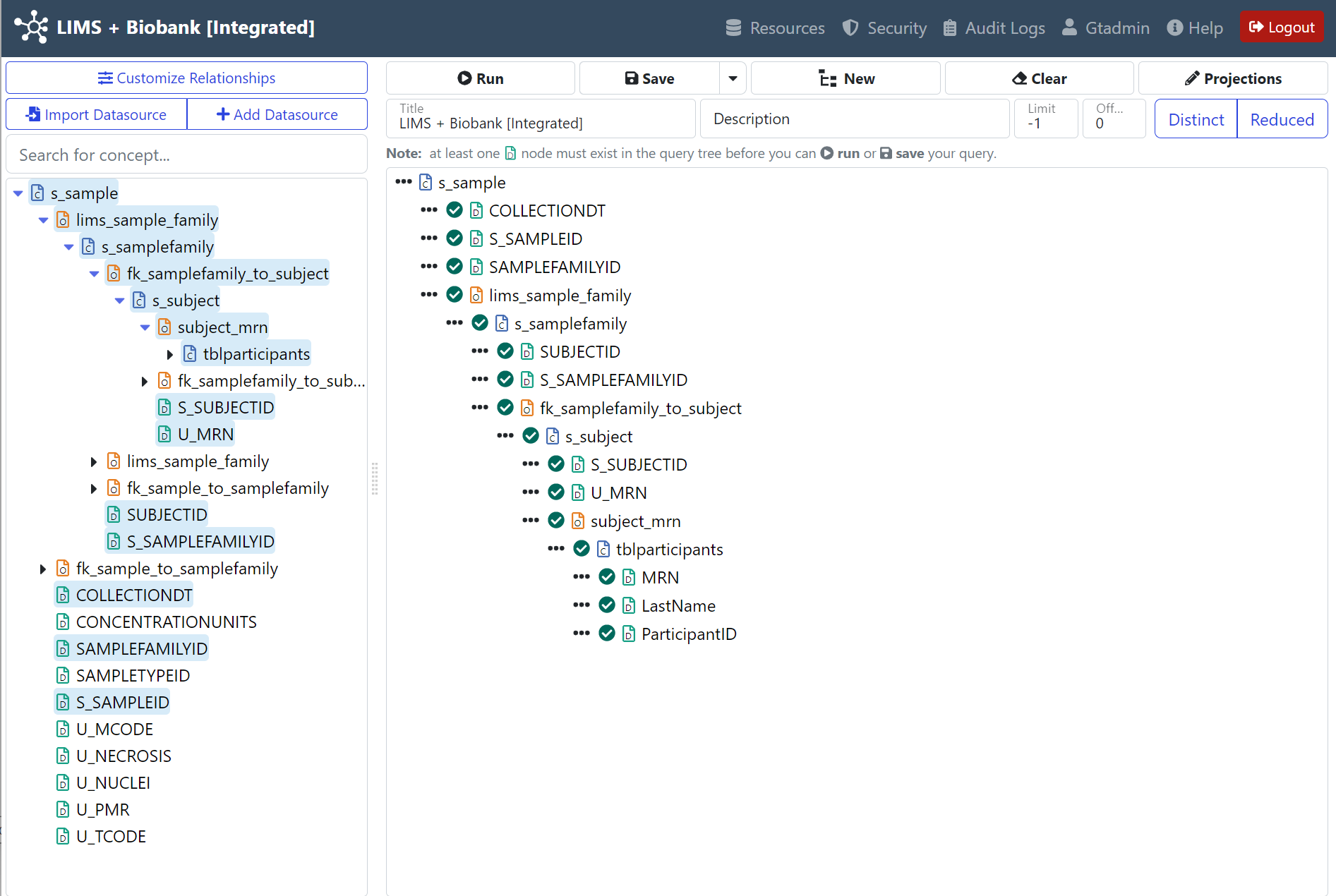 In an Integrated Mediator, all classes, relationships, and data fields from the underlying mediators along with any custom relationships are available in the Query Builder.
Check back later for more details about the Integrated Mediator Wizard.