Projections
Query Projections can be thought of as the column headers that are returned by your query. By default, they use the data property's label and the order with which the properties were added to the query. You can customize the label and order of the Projections using the Projection Editor.
 LIMS
LIMS s_sample Query: Before Editing Projections
To get started, click on the Projections button at the top of the Query Editor.

Projection Editor
At the top of the Projection Editor are options to Add class prefix, Add Expression, and Reset changes.
 | Adds the property's parent class name as a prefix. |
 | Adds a Projection Expression to calculate a new value. |
 | Resets any changes to the Projections to the last saved state. |
There is also a note about how to show/hide projections or create a projection group.
 Edit Projections for LIMS
 s_sample: Before Changing Projection Names
Changing Projection Names (Aliases)
You can set an Alias for each data property's name. The new Alias will be displayed in the Query Editor and will be used as the column header in the Query Results.
You can also reorder the projections by dragging the left-hand tab up or down. The top-most projection will appear in the first column.
Click Save Changes to save your changes, or Cancel to discard them.
 Edit Projections for
 s_sample: Changing Projection Names (Aliases)
Reordering and Hiding Projections
You can rearrange the order of each data property in your Query Results by dragging the  button up or down in the order you want your results to appear, and you can show
  or hide
  your data properties in your Query Results.
Viewing Aliases in the Query Editor
In the Query Editor, the projection Alias is displayed next to the original data property's name.
 LIMS
LIMS s_sample Query: Projection Aliases are Presented for Each Property.
Viewing Aliases in the Query Results
In the Query Results, the projection Alias is displayed as the column header.
 LIMS
LIMS s_sample Query: Query Results use the Projection Aliases as Column Headers.
Adding Projection Expressions
You can add calculated values to your query results by clicking on the button. This brings up the Projection Expression Builder, which lets you select Functions, Data properties, and Constants to create an Expression.
Once you've finished creating your Projection Expression, click Apply Expression.
The default name of the Projection Expression is a flattening of the Expression into a simple string.
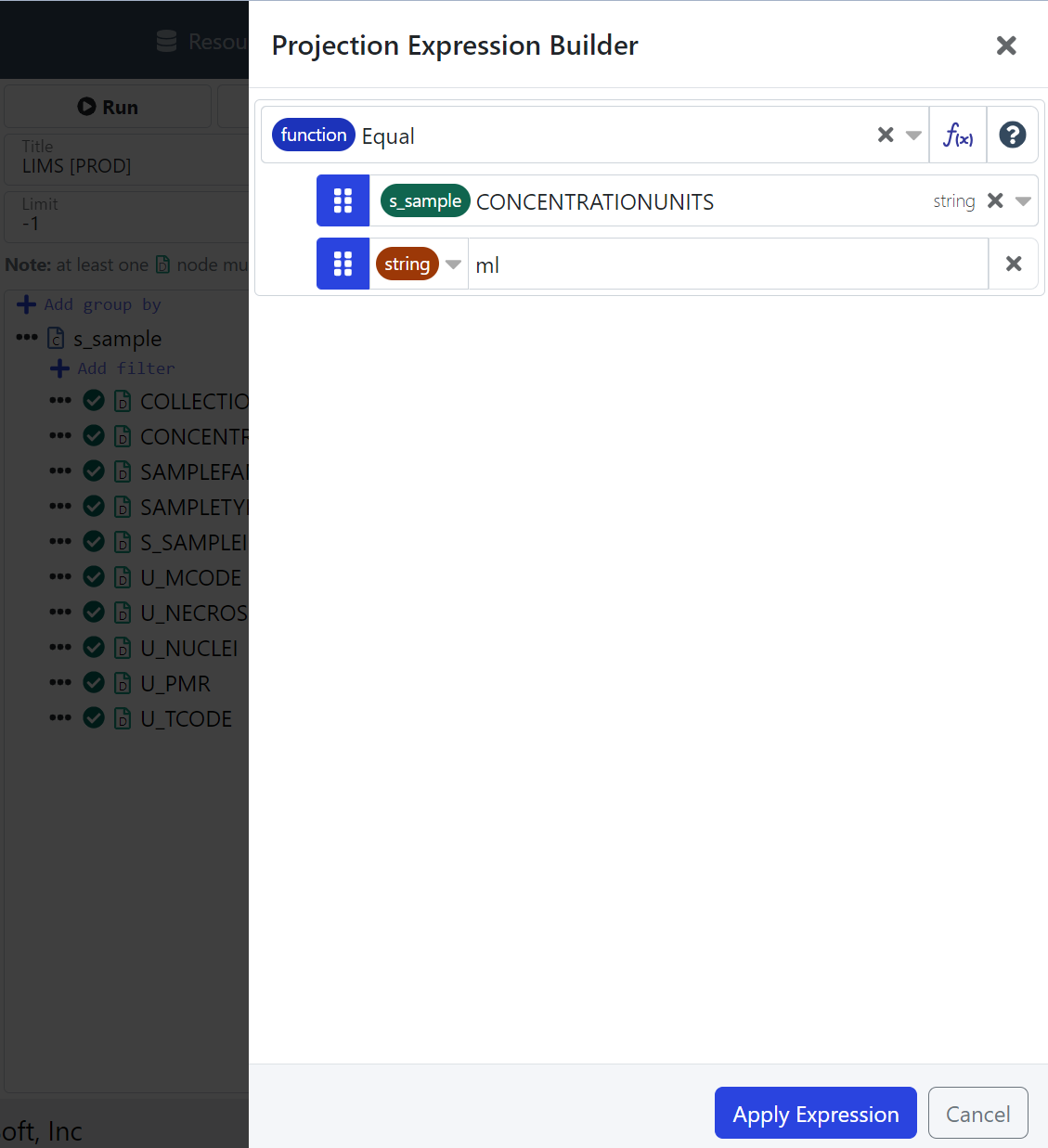 | 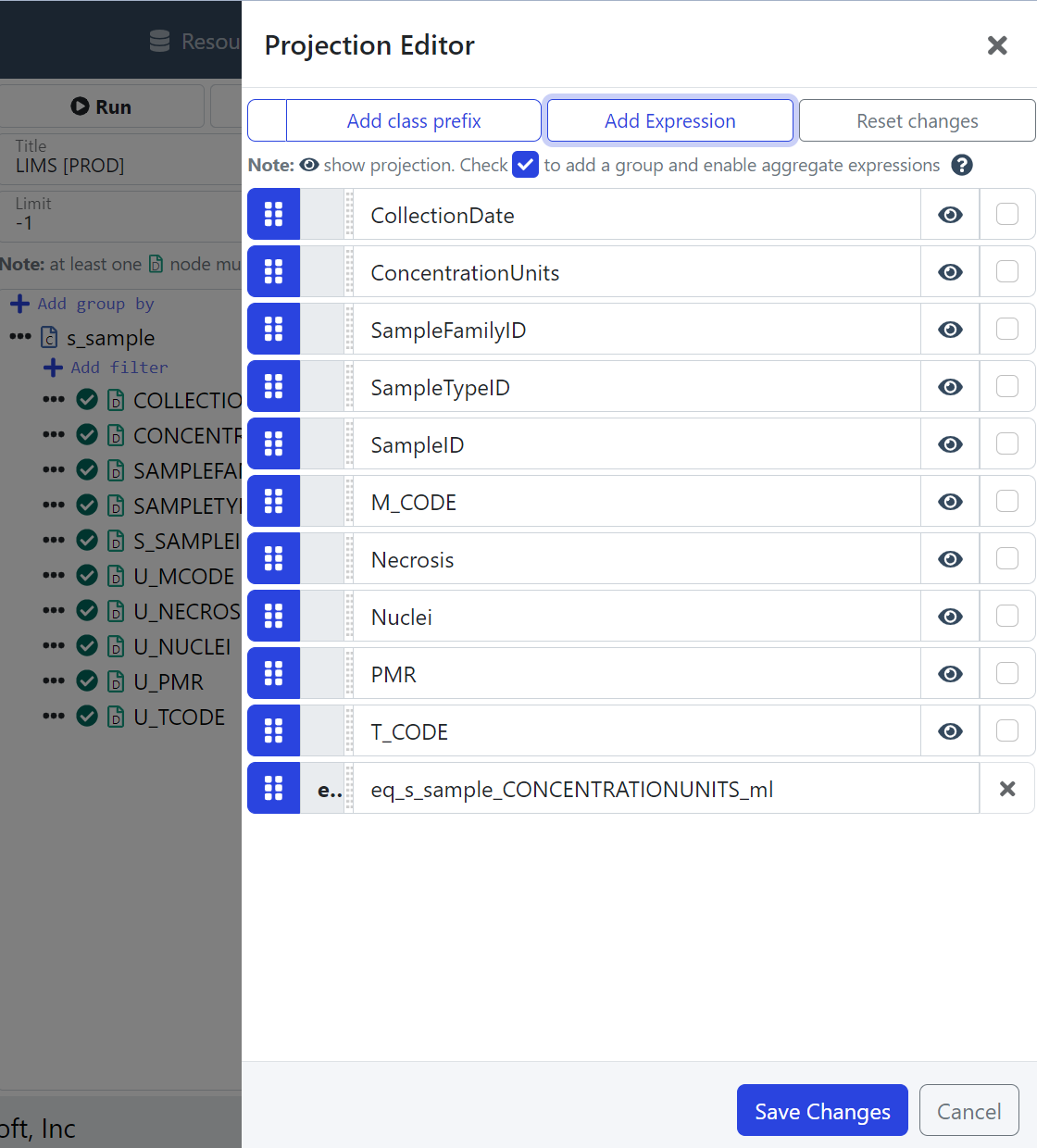 |
LIMS s_sample Query: Add a Projection Expression equal(CONCENTRATIONUNITS, "ml") | LIMS s_sample Query: Projection Expression equal(CONCENTRATIONUNITS, "ml") |
Grouping Projections
You can add a data property to a group by selecting the ✅ checkbox. This will automatically hide non-group data properties, as they are no longer compatible with a group-by query. Select multiple ✅ data properties to add them to the group.
 LIMS
LIMS s_sample Query: Group-By ConcentrationUnits
Group-By Projection Expressions
Similar to Adding Projection Expressions, you can add Projection Expressions to the group-by query. In this case, you are limited to using Aggregate functions such as ( count, min, max ) on any non-group fields.
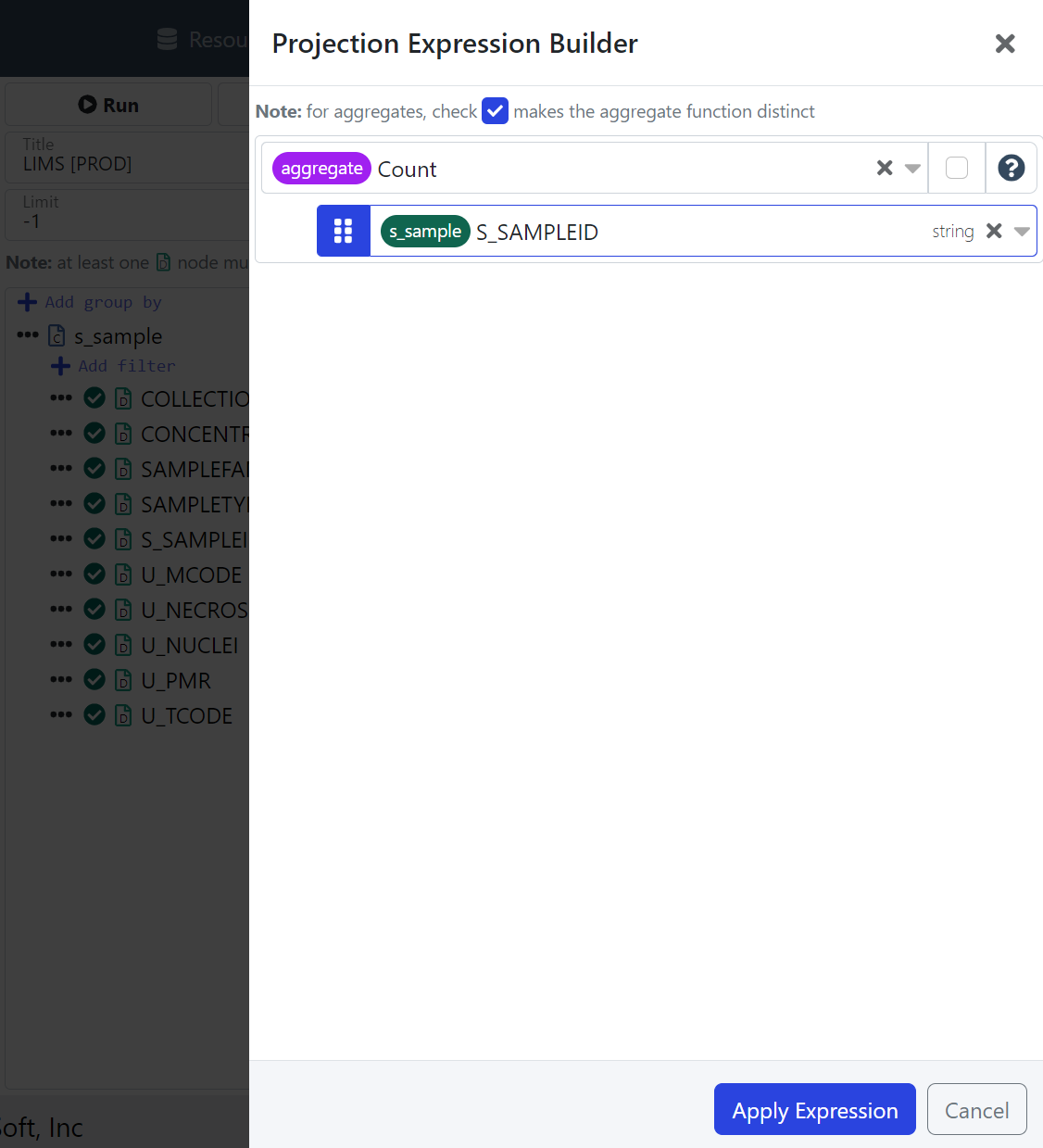 | 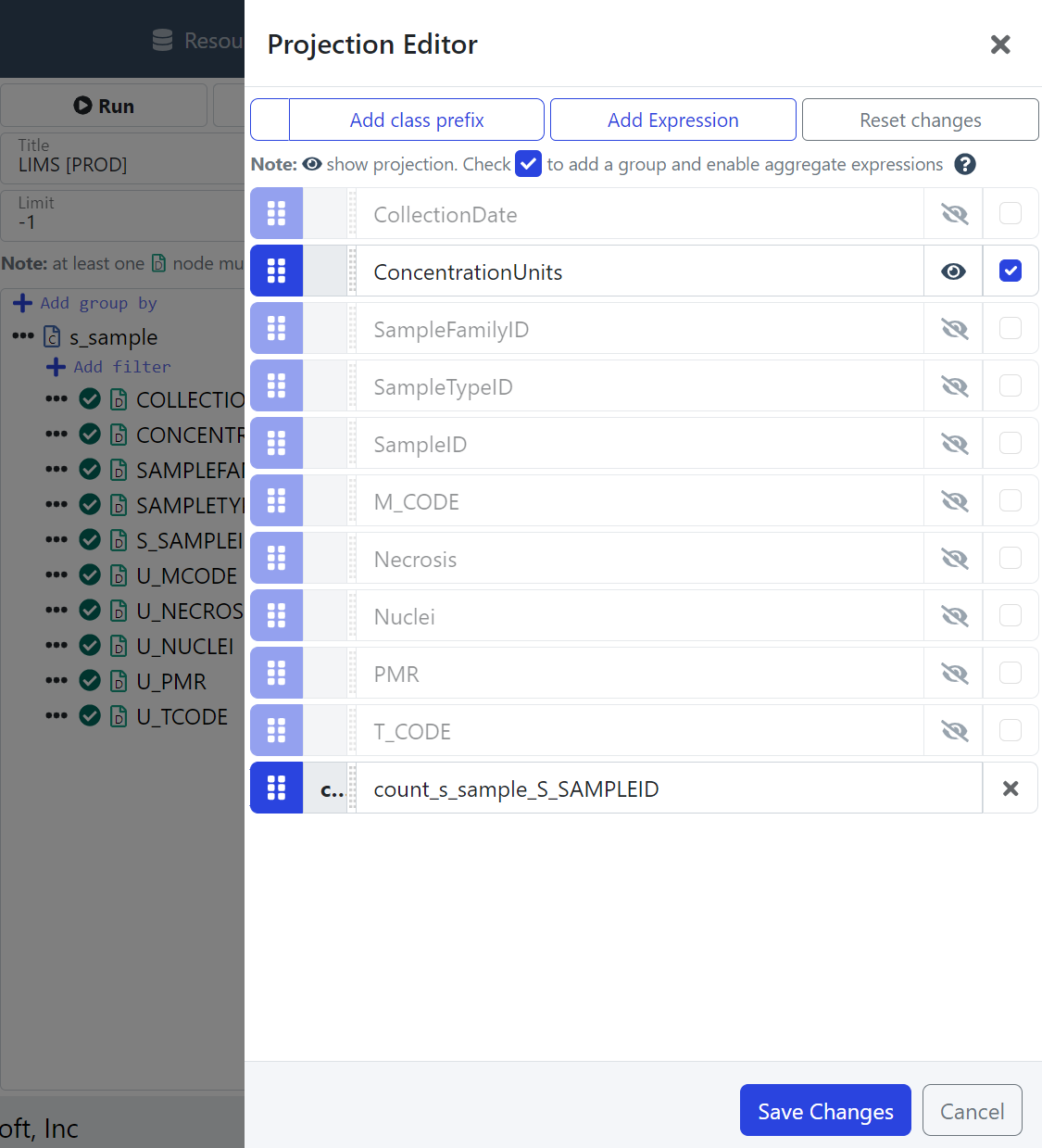 |
LIMS s_sample Query: Group-By Expression count(S_SAMPLEID) | LIMS s_sample Query: Group-By ConcentrationUnits, count(S_SAMPLEID) |
Check back later for more details about Query Projections.